Using simple spoken commands, seniors can effortlessly control their environments, stay connected with family, and manage their health routines without dealing with confusing smartphone screens or tiny buttons. For caregivers, these hands-free systems offer a reliable layer of safety and a simple way to stay in touch with aging parents.
The rapid integration of next-generation artificial intelligence (AI) has completely changed the voice assistant landscape. In 2026, voice assistants understand natural human speech better than ever, maintain continuous conversations, and proactively help around the house. However, choosing between options like Amazon Alexa, Google Gemini, and Apple Siri can feel overwhelming with all these new features.
This comprehensive buyer’s guide breaks down the best voice assistants for seniors in 2026. We will compare their features, explore the top hardware options, evaluate privacy controls, and provide step-by-step setup advice to help you find the perfect smart companion for your home. Lets deep dive into “Best Voice Assistant for Seniors 2026 — Safe, Simple & Senior-Friendly Picks”
What Is a Voice Assistant?
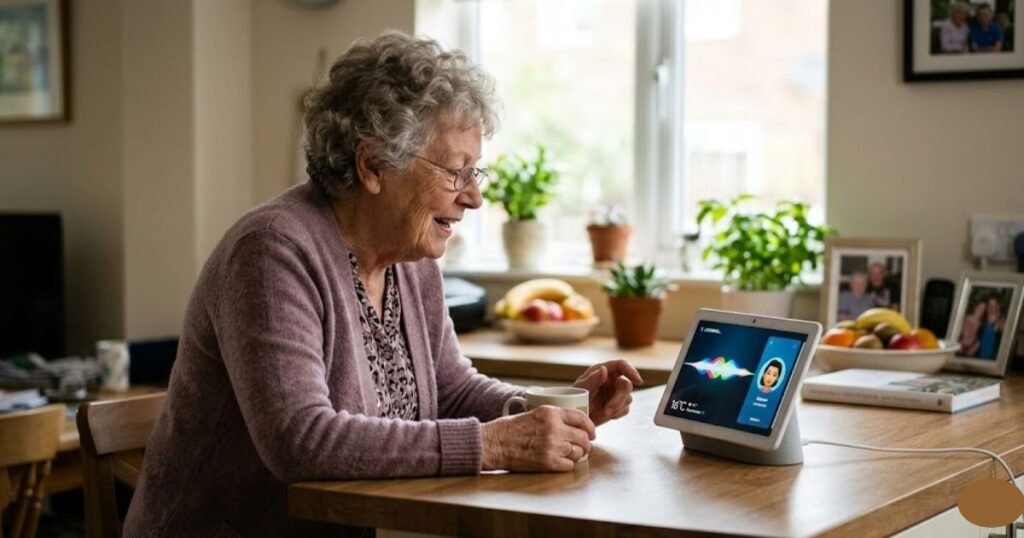
At its core, a voice assistant is an artificial intelligence program designed to recognize spoken commands, process what you mean, and perform specific actions. Instead of typing on a keyboard or tapping a touchscreen, you simply talk to the device like you would to another person.
These digital assistants live inside physical hardware, which usually falls into two categories:
- Smart Speakers: Compact, screenless audio devices equipped with microphones and speakers (such as the Amazon Echo or Apple HomePod).
- Smart Displays: Smart speakers with built-in touchscreens (such as the Amazon Echo Show or Google Nest Hub) which show visual information alongside spoken answers.
To get your voice assistant’s attention, you use a specific phrase known as a wake word (such as “Alexa,” “Hey Google,” or “Siri”). The device constantly listens for this specific phrase. Once it hears the wake word, it records your command, sends it over a secure internet connection to the cloud to process it, and instantly responds out loud or on the screen.
In 2026, these devices handle a massive variety of daily tasks, including managing schedules, playing your favorite media, and answering questions in plain English.
Accessibility Features Seniors Should Look For
When shopping for senior-friendly smart devices, look closely for these built-in accessibility features to ensure they are easy to use:
- Loud, Distort-Free Speakers: Vital for individuals with age-related hearing loss. Look for models that focus on vocal clarity so speech doesn’t sound muffled.
- Large, High-Contrast Displays: Screen-based devices should offer adjustable text sizes, bold lettering, and anti-glare screen surfaces.
- Advanced Voice Recognition: The assistant should feature adaptive voice training to understand slower speech patterns, tremors, or slight speech impediments.
- Hearing Aid Compatibility: Many modern smart speakers can stream their audio responses directly to Bluetooth-enabled hearing aids.
- Clear Closed Captions: Smart displays should offer real-time text captions for all spoken assistant answers and incoming video calls.
- Screen Readers: Audio-guided menu navigation helps individuals with severe vision impairment set up their devices independently.
- Bright Visual Alerts: Flashable light rings or screen borders help notify users of incoming phone calls or active timers without relying purely on sound.
- Simplified App Setup: Look for streamlined smartphone companion apps that don’t crowd the screen with complex technical options.
- Adjustable Voice Speed: The ability to slow down the speed at which the assistant speaks makes it much easier to understand long or detailed answers.
READ MORE: Best Health Tracking Smartwatch for Seniors 2026 — Top 8 Picks Compared
Safety Features
Voice assistants are key components of a modern aging-in-place strategy, providing safety tools that give older adults and long-distance caregivers extra peace of mind.
- Hands-Free Emergency Calling: If a senior falls and cannot reach a phone, they can simply yell, “Call for help,” to reach pre-programmed family contacts or dedicated emergency safety lines.
- Daily Caregiver Check-Ins: Systems can be set to prompt seniors in the morning. If the senior doesn’t acknowledge the prompt by a certain time, an automated text alert is sent directly to their caregiver.
- Caregiver Drop In: Allowed family members can instantly open an audio or video bridge to check on an unresponsive senior during a potential medical crisis.
- Smart Doorbell Integration: Seniors can view live video of who is at the front door on their smart display screen and talk to visitors without getting up.
- Automated Motion Sensors: Tie motion sensors to your smart assistant to automatically illuminate paths to the bathroom at night, dramatically reducing fall risks.
- Fall Detection Integrations: Many modern medical alert pendants link with smart home speakers to automatically announce an alert throughout the house when a fall is detected.
- Smoke and Carbon Monoxide Listening: Devices like the Apple HomePod can monitor the home for traditional smoke alarms and instantly send an emergency notification to a caregiver’s phone if a siren goes off.
- Real-Time Security Feed Lookups: Seniors can check on their home’s security simply by asking, “Is the back door locked?” or “Show me the driveway camera”.
- Whole-House Voice Announcements: Caregivers can broadcast clear announcements across all household speakers, such as reminding a senior that a family member is arriving in ten minutes.
Best Voice Assistant for Seniors 2026: Reviews & Prices
1. Amazon Echo Show 8 (Current Gen)
The Echo Show 8 is Amazon’s mid-size smart display that balances an 8.7″ HD touchscreen with improved spatial audio, a centered auto-framing camera, and a built-in smart-home hub a solid all-rounder for kitchens, living rooms, or bedside use.
Key features
- ~8.7″ vibrant HD touchscreen with trimmed bezels and more viewing area than prior Echo Show 8 models.
- Centered, auto-framing 13 MP camera for clearer video calls and better framing.
- Spatial / room-filling audio with front-firing drivers and a custom woofer for stronger sound than smaller displays.
- Built-in smart-home hub (Zigbee/Matter/Thread support) and updated AZ3 Pro silicon for snappier performance and on-device features.
Pros
- Excellent balance of screen size and audio for the price great for video calls, recipes, and captions.
- Strong camera auto-framing and improved mic/speaker pickup for hands-free calls.
- Acts as a capable smart-home hub, reducing the need for extra bridges.
Cons: Requires a bit of “swipe” knowledge for deep settings; camera shutter is manual
Verdict: A versatile mid-size smart display that pairs a readable screen and solid sound with useful smart-home hub features — a great choice for most homes. Check Product & Price below-

2. Amazon Echo Show 5
The Echo Show 5 is a compact 5.5-inch smart display from Amazon designed as a bedside or countertop Alexa hub for alarms, video calls, quick info, and basic smart-home control.
Key features
- 5.5″ touchscreen (960 × 480) for clocks, weather, and video previews.
- Built-in camera for video calls with a physical privacy shutter.
- Improved bass and clearer vocals over earlier tiny speakers good for alarms, news, and brief media.
- Alexa routines, smart-home control, and compact form factor for nightstands and small counters.
Pros: Small footprint; very affordable for a screen; good “tap to snooze.
Cons: Screen is too small for seniors with significant vision impairment
Verdict: A compact display best suited for a bedside clock. It provides visual confirmation of alarms and weather. Check Product & Price below-

3. Amazon Echo Show 11 (newest model)
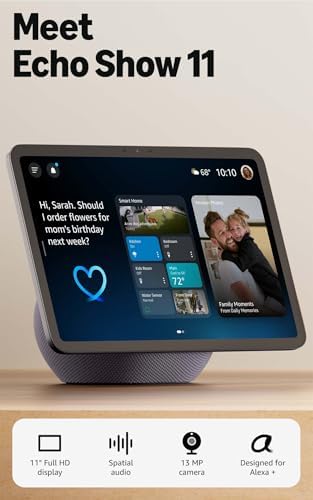
The Echo Show 11 is Amazon’s new 11-inch Full-HD smart display with a larger viewing area, upgraded AZ3 Pro chip, spatial audio, and built-in smart-home hub features — designed as a mid-to-large smart display for video calls, routines, and media in the living room or kitchen.
Key features
- 11″ Full-HD touchscreen with roughly 60% more viewing area vs. the Show 8.
- Spatial audio / improved speaker system for clearer voice and music playback.
- Built-in smart home hub (Zigbee/other protocols) for directly connecting bulbs and sensors.
- Auto-framing camera and Omnisense presence features for personalized experiences.
Pros
- Spacious, easy-to-read 11″ screen that’s great for video calls and captions.
- Strong audio and far-field mics — good for both media and hands-free voice control.
- Built-in hub reduces the need for extra bridges when adding smart bulbs/sensors.
Cons
- Larger size and price than compact bedside displays — not ideal for very small nightstands.
Best for: Seniors or families who want a large, easy-to-read smart display for video calls, reminders, and smart-home control. Check product & price-
4. Google Smart Display 7 inch (Taiwan Model GUIK2-TW)
The Taiwan SKU of the Google Nest Hub (2nd Gen) — sold as the 7″ Google Smart Display, model GUIK2-TW — is a compact smart display that combines Google Assistant, a 7-inch touchscreen, and improved audio for bedside or kitchen use.
Key features
- 7-inch HD touchscreen with touch controls for media, smart-home tiles, and captions.
- Enhanced speaker with ~50% more bass than the original Nest Hub for clearer voice and music playback.
- Sleep sensing and presence features (Soli-based sensing in some markets) for optional sleep & motion insights.
- Google Assistant integration for timers, reminders, calendar, photo display (Google Photos), and controlling compatible smart devices.
- Multi-language / regional firmware for Taiwan market (GUIK2-TW) making it compatible with local services and retailers.
Pros
- Compact size that fits well on nightstands or small kitchen counters.
- Clear voice responses and improved bass make replies and media easier to hear.
- Deep integration with Google services (Calendar, Photos, Maps) — handy for seniors and caregivers who use Google accounts.
Cons
- Small screen may be less useful for users who need large captions or bigger video calls.
- Some advanced features (like Soli sleep sensing) can be region-restricted or require enabling in settings.
Verdict: A compact, well-rounded 7″ Google smart display ideal for bedside and kitchen use — especially if you use Google services. Check product & price-

5. Apple HomePod mini
The HomePod mini is Apple’s compact smart speaker that delivers surprisingly full 360° sound for its size while acting as a private, Siri-powered smart home hub tightly integrated with iPhone and HomeKit.
Key features
- Full-range driver + dual passive radiators for richer bass in a tiny package.
- Siri voice assistant with Intercom, timers, reminders, and HomeKit control.
- Thread + HomePod as Home Hub for local smart-home automation and Matter readiness.
- Works seamlessly with AirPlay 2 and Apple ecosystem (iPhone, iPad, Apple TV).
Pros: Unmatched privacy; seamless “Handoff” from iPhone; surprisingly good sound
Cons: Requires an iOS device to set up; Siri is less “conversational” than Alexa.
Verdict: The best choice if the senior already uses an iPhone, Apple Watch, or iPad. Siri is highly focused on privacy and simple commands. Check Product & price-

6.Amazon Echo Dot Max (newest model)
The Echo Dot Max is Amazon’s larger, more powerful Echo Dot: a compact, spherical smart speaker with a dedicated woofer + tweeter for deeper, room-filling sound, an AZ3 chip for snappier performance, Omnisense presence features, and a built-in smart-home hub designed as an affordable option for living rooms and medium spaces.
Key features
- Nearly 3× the bass vs. the standard Echo Dot (improved woofer + tweeter).
- Built-in smart-home hub (Zigbee) and Omnisense tech for adaptive audio and presence detection.
- Designed for Alexa+ experiences and major streaming services (Amazon Music, Spotify, Apple Music).
Pros
- Much fuller, punchier sound than previous Dots — good for music in medium rooms.
- Strong far-field mic pickup and Alexa feature set.
- Built-in hub reduces the need for extra bridges when adding smart bulbs/sensors.
Cons
- Still not a replacement for high-end speakers if audiophile fidelity or stereo imaging matters.
Verdict: Great upgrade if you want big Dot sound and a built-in hub at an affordable price. Check product & price-

7. Sonos Era 100
The Sonos Era 100 is a compact, bookshelf-style smart speaker that brings noticeably fuller stereo sound than Sonos’s older One line while keeping a small footprint for a nightstand, kitchen counter, or bookshelf. It supports Wi-Fi and Bluetooth, works with the Sonos S2 app and AirPlay 2, and offers built-in voice options for hands-free control.
Key features
- Stereo-capable acoustics with dual tweeters and a 25% larger woofer than the Sonos One for deeper bass and wider soundstage.
- Fast processor & on-device tuning — a faster SoC and Sonos tuning tech deliver clearer detail and snappier UI.
- Multi-platform connectivity: Wi-Fi, Bluetooth, Apple AirPlay 2, and line-in on supported setups.
- Voice control options: Sonos Voice Control and support for Alexa (region/setups may vary).
- Trueplay & app EQ: Custom tuning through the Sonos app for room-specific sound.
Sound character & real-world notes
The Era 100 outperforms Sonos One in bass depth and stereo imaging for its size it’s clearer for vocals and gives a room-filling feel when used solo or paired. Review testing highlights that it’s a strong all-rounder for music, podcasts, and home listening without needing extra speakers. Reviewers have praised its balance of detail and bass for a compact speaker.
Pros
- Great stereo separation and improved bass for a compact speaker.
- Seamless Sonos multiroom ecosystem and AirPlay 2 support.
- Clean design and durable build.
Cons
- Price is higher than many small smart speakers (though sales occur).
- No dedicated battery (not portable) — best as a stationary home speaker.
Verdict: A compact, refined bookshelf speaker that gives Sonos-level multiroom convenience and unexpectedly rich sound for its size. Check product & price-

Comparison Table: Best Voice Assistants for Seniors 2026 (Alexa vs Google)
| Device | Primary Assistant | Screen Size | Best Use Case | Audio Profile | Price Band (US) | Senior Score |
| Echo Show 11 (Newest) | Alexa+ | 10.95″ Full HD | Kitchen Hub / Main Control | 3D Spatial Audio + Custom Woofer | ($249 – $279) | 4.8/5 |
| Echo Show 8 (4th Gen) | Alexa+ | 8.7″ HD | Bedside / Office | Room-filling Stereo | ($179 – $199) | 5/5 |
| Echo Show 5 (3rd Gen) | Alexa | 5.5″ | Desk / Nightstand | Clear Vocals (compact) | $89 | 4/5 |
| Echo Dot Max (Newest) | Alexa+ | None | Living Room Music | 2.5″ Woofer (Deep Bass) | ($99) | 4.2/5 |
| Nest Hub 7″ (GUIK2-TW) | 7″ | Sleep Tracking / Photos | 50% more bass than Gen 1 | ($89 – $99) | 4.5/5 | |
| HomePod mini | Siri | None | Apple Ecosystem | 360-degree Audio | ($109) | 3.5/5 |
| Sonos Era 100 | Alexa / Sonos | None | Audiophile Listening | Next-gen Stereo Separation | ($229 – $249) | 4/5 |
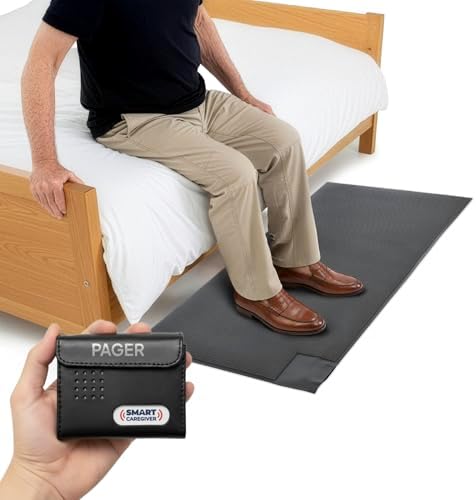
Don’t Wait for a Fall—Get Protected Now. Check this Smart Caregiver Floor Mat Alarm & Pager System. check below-
READ MORE: Is There Any Technology Grants for Senior Citizens?
Privacy Considerations
It is completely normal for seniors and their families to have concerns about privacy when introducing an always-listening smart device into the home. Understanding how these systems handle your information helps you use them safely and confidently.
Always-Listening Privacy Realities
Smart speakers do not record or stream everything you say to the cloud. They run a small, local program that monitors audio for the exact wake word. Until that exact phrase is heard, your conversations stay completely private inside the room.
Voice Recordings and Storage
Once the wake word is detected, a brief audio clip of your command is securely uploaded to the cloud for processing. By default, companies save these voice interactions to train their AI models, but you can opt out of this storage entirely.
Actionable Tips to Improve Your Privacy
- Use the Physical Mute Button: Every major smart speaker features a physical slider or button that cuts power directly to the microphone, guaranteeing privacy when you want it.
- Turn Off Camera Toggles: Use the physical built-in plastic shutters on smart displays to cover the camera lens when you aren’t making video calls.
- Regularly Clear Your Voice History: Use the device companion app to set your voice history to delete automatically every 3 to 18 months.
- Disable Voice Shopping Purchases: Turn off voice-controlled purchasing, or set a mandatory 4-digit spoken PIN code to prevent accidental orders or unauthorized shopping.
- Secure Your Core Accounts: Protect your Amazon, Google, or Apple accounts with strong passwords and two-factor authentication (2FA) to keep your smart home data safe.
READ MORE: Best Smart TV for Seniors in 2026: Easy to Use & Large Screen Picks
Step-by-step Easy Voice Assistant Setup for Older Adults
Estimated time: 20–60 minutes for a single plug-in device; 1–3 hours if pairing multiple devices or using a professional. Professional rates typically run $80–$100 per hour; small wireless installs are often a couple hours.
Step 1: Place the Device for Optimal Audio
Set your smart speaker on a flat, stable surface away from noisy home appliances, open windows, or kitchen sinks. Make sure it is close enough to where the senior sits so they don’t have to strain their voice to be heard.
Step 2: Establish a Stable Wi-Fi Connection
Plug the device into a wall outlet. Open the companion app (Alexa, Google Home, or Apple Home) on a smartphone or tablet, select “Add New Device,” and follow the prompts to connect it to your home Wi-Fi network.
Step 3: Complete Voice Profile Training
Have the senior complete the built-in voice training process by reading a few short sentences out loud. This helps the assistant recognize their voice profile, filter out television noise, and deliver personalized calendar and contact results.
Step 4: Import Key Contacts and Setup Calling
Import essential phone numbers for family members, close neighbors, and physicians into the account. Test the system by saying, “Call [Family Member’s Name],” to ensure the call goes through hands-free.
Step 5: Program Critical Medication Reminders
Set up recurring reminders for daily health tasks. Use clear, descriptive language, such as: “Hey Google, remind me to take one blue blood pressure pill every morning at 8:00 AM”.
Step 6: Configure Emergency Contacts
Set up emergency contacts in your safety settings, and teach the senior the exact phrase to use if they fall or need immediate help around the house.
Step 7: Optimize Privacy and Notification Settings
Turn off optional tracking features, adjust voice data deletion schedules, and disable voice purchasing unless it is specifically needed.
Step 8: Link and Test Smart Home Devices
Connect your smart plugs, light bulbs, or security cameras in the app. Group them by room name (e.g., “Living Room Lights”) so they are easy to control with simple commands.
Methodology: How We Chose These Devices
Our selection process focused on five criteria:
- Accessibility Features: We prioritized devices with high-quality microphone arrays and clear, adjustable audio.
- Senior-Friendly UX: We looked for “set-and-forget” capabilities, such as recurring routines and physical buttons.
- Caregiver Ecosystem: We chose devices that allow family members to remotely manage settings or make “drop-in” calls.
- Availability & Value: All devices are verified as available in the U.S. market as of March 2026 with consistent pricing.
- Verified Reviews: We cross-referenced our findings with technical testing from The Verge, Wirecutter, and CNET to ensure durability and reliability.
READ MORE: 10 Best Hearing Aids in 2026 | Reviews, Prices & Buyer Guide
Common Problems and Troubleshooting
- The Device Doesn’t Hear Your Voice: Move the speaker away from walls or noisy electronics. Speak at a normal cadence and volume, pausing slightly after saying the wake word.
- The Internet Connection Drops Repeatedly: Unplug your home internet router and the smart speaker for 30 seconds, then plug them back in. If the device is too far from the router, consider adding a Wi-Fi range extender.
- The Assistant Gives Incorrect Responses: If an AI assistant gives an unusual or confusing answer, simplify your wording or break down long requests into shorter, separate questions.
- Medication Reminders Fail to Go Off: Check the companion app to ensure the volume level for alarms and alerts is turned up, and verify that the time zone settings on your account are correct.
- The Microphones Stopp Listening Entirely: Check the physical mute button or slider on the back of the device. If a red light ring or indicator light is glowing, the microphone is muted and needs to be toggled back on.
- How to Perform a Factory Reset: If a device freezes up or stops responding entirely, hold down the action or power button for 15–20 seconds to reset it to its original factory settings and start fresh.
Expert Buying Tips
- Prioritize Screens for Visual Clarity: Choose a smart display over a screenless speaker if the senior has mild hearing loss; seeing answers in print helps prevent communication errors.
- Match with the Senior’s Current Smartphone: Always align your voice assistant with the smartphone the senior already uses to keep their calendar and contacts synced effortlessly.
- Start with Just One Device: Avoid overwhelming a senior by installing devices in every room at once. Start with a single speaker in the living room or kitchen, then expand later.
- Use clear Labels for Smart Accessories: Give your smart plugs and lights simple, distinct names like “Reading Lamp” or “Kitchen Overhead” instead of confusing room codes.
- Adjust the Assistant’s Speaking Speed: Slow down the assistant’s voice settings in the app right away if the senior finds the default speaking speed difficult to follow.
- Set Up a Caregiver Account Strategy: Share device app access with a trusted family member so they can manage settings, update contacts, and fix issues remotely.
- Choose High-Contrast Screen Backgrounds: Turn off rotating photo slideshows on smart displays and choose a clean, static, high-contrast clock face for maximum visibility.
- Create a Physical Voice Command Cheat Sheet: Write down 5 to 10 common commands on a large, laminated index card and place it near the speaker as a quick reference guide.
- Consider an Extended Power Cable: Ensure you have enough length to place the smart speaker securely on a table without creating a dangerous tripping hazard across the floor.
- Test the Emergency Voice Commands Together: Practice saying the emergency call commands with the senior during setup so they feel confident using them in an emergency.
- Check for Hearing Aid Bluetooth Support: See if the senior’s current hearing aids can link directly to the speaker for clear, direct audio streaming.
- Opt Out of Voice Shopping Right Away: Turn off voice-activated purchasing during setup to completely eliminate the risk of accidental orders or unwanted costs.
How voice assistants help seniors
- Safety & emergency response: Quick voice calls to family or emergency contacts; integrations with medical alert services or caregiver notifications. (See Emergency use section.)
- Independence & mobility: Turn lights on/off, control thermostats, and start appliances without getting up.
- Cognitive support: Set recurring medication and appointment reminders, shopping lists, and daily check-ins.
- Social connection: Hands-free voice or video calls to family, and easy access to audiobooks, radio, and music.
- Entertainment & routine: Weather, news briefings, games, and “goodnight” routines that bundle checks and smart-home actions.
READ MORE: Best Landline Phone Service for Seniors (2026) | Plans, Costs & Reviews
What is the best voice assistant for seniors in 2026?
The “best” depends on your existing tech. In 2026, the Amazon Echo Show 8 is widely considered the best all-rounder due to its balance of screen size, audio quality, and “Alexa Together” caregiving features.
How do I set up a voice assistant for an elderly person step by step?
Simplify: unbox, plug in, open the vendor app (Alexa/Google/Home), follow “add device,” set volume and speech rate, create 2–3 helpful routines, enable caregiver access, and test contacts & reminders. Ask an installer for help if Wi-Fi coverage or smart-home wiring is needed.
Are voice assistants safe for seniors — what about privacy?
Voice assistants are generally safe when configured properly but they do collect some voice data to improve services. Use physical mic/camera mute, limit third-party skills, enable short retention of recordings, and avoid storing financial or sensitive data on the device.
Can a voice assistant call 911 or contact emergency services for my senior parent?
Some assistants can contact local emergency services or make outbound calls, but capabilities differ by vendor and by U.S. locality. Do not rely solely on a voice assistant for emergencies test the setup (non-emergency) and keep a direct phone option.
Which voice assistant is easiest to use for someone with hearing loss?
Devices with loud, clear speakers, adjustable speech rate, and on-screen captions (for displays) are best. Google Nest Hub and Echo Show devices offer visual aids and captions; HomePod mini connects easily to Apple hearing devices if the senior uses iPhone.
Final Verdict
Choosing the right assistant doesn’t have to be overwhelming. Follow this simple decision tree:
- If they want a simple bedside companion for alarms and radio: Get the Amazon Echo Dot (5th Gen).
- If they want to see their grandkids’ faces on video calls: Get the Amazon Echo Show 8.
- If they are worried about privacy and have an iPhone: Get the Apple HomePod mini.
- If they want to track sleep patterns and use Google Search: Get the Google Nest Hub (2nd Gen).
- If they have a large kitchen and move around a lot: Get the Amazon Echo Show 11.